
Image manipulations with Imagemagick
A very powerful tool for creating and manipulating images is ImageMagick. With this tools you can create drawings, modify existing images or just process images. The tool is available for Linux, windows and Mac based systems and is free available. Using the command line is Imagemagick the optimal tool to use image functions within your script or application.
Use Imagemagick to watermark your images, to create fancy e-cards or just to convert images into other formats. Basic operations are very easy like
convert resize 50% image.jpg new.png
This simple command will resize your jpg image and safe a copy as some new image in .png format. Just imagine how much code you need with the GD library. As a webmaster you will find ImageMagick with most of the web hosting accounts.
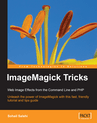 Check Google if you need example code and resources. If you can’t find the information you should try the book “ImageMagick tips and tricks”. This book full of information and tutorials is a good start to learn all basic functions of this powerful tool.
Inside the book you find instructions how to install ImageMagick on different platform and there also basic instructions on how-to install additional fonts. If you’re interested in this feature you should read this article too.
You will find real word examples for each command line tool. Each function has a few lessons of each chapter to train each function with a real world example:
Convert and mogrify
Both functions are used for transformations, while the convert creates a new image is the mogrify function used to change existing images. For examples:
crop an existing image and safe a cropped new version
convert sample.png crop 110x70+60+50 cropped.jpg
draw a line on white background inside a new image
mogrify size 80x100 xcwhite draw 'line 10,10 70,90' line.bmp
Composite and montage
These both functions are used to group or assemble multiple image sequences together like:
Mask an existing logo image with some background and safe it into the result image
composite -compose CopyOpacity logo_mask.png background.png result.png
Other functions like identify, display, import and conjure are explained too, check the book or the IM website for more information.
The book is written to use ImageMagick with php. Use above tools in your PHP code like:
$command = 'convert example.jpg new.png';
 exec($command);
Instead of the PHP function exec it’s also possible to process the commands with functions like system, passthru or shell_exec.
After you got all the basic lessons you get some more practice:
- How to call ImageMagick Command-line Utilities within PHP code
- How to Save the Result of an Online Image Processing Task
- How to Start Sessions for our Visitors
- Building a Confirmation-Code Box
- Online Image Water Marking
- A complete E-card application
Learn how to add different text styles to your e-cards. The tutorial includes the complete code for the following features:- Image gallery
- Image upload / remote copy
- custom text for the e-cards
- fomat text on images
- send the finished e-card by e-mail
The book was released in 2006 but is still “compatible” with current version of ImageMagick.
More ImageMagick resources
Published in: PHP Scripts

ImageMagick does rock, I love it. One thing though, you mentioned about the command line being the optimal tool, but I do believe that the MagickWand APIs (such as Imagick for php) are much faster.
Hi Rich,
I never used the APIs, but must say that Imagick looks really good.
The best thing would be if an API would work also on hosts where system function like exec() are disabled.
Very very good news indeed – at the moment I am handcoding php for users to upload their images and have them resized – some sort of api for this functionality would make my life a lot easier :)
Hi Robert,
in my opinion ImageMagick is much easier and powerful as the GD library. With GD you need for an image resize process several rows of code.
If you don’t like to use the command line tools, try Imagick API
I have used ImageMagick’s montage commmand to create simple montages. I often used a simple script to create these montages to ensure part of my desktop wallpaper had a fixed image and the other part kept changing. This was probably 7-8 years ago when I was still using wmaker and was contemplating moving to KDE :))
Hi Jeet,
this book (review) is for developer using IM on webservers ;)
@Olaf: IM is definitely much more powerful than GD but it’s also fun to use it on desktops :)
Hey Jeet,
I use IM a lot for image conversions via the command line on my Ubuntu laptop ;)
ImageMagick can be a lot more efficient than GD too, and can do some operations which may be too memory intensive in GD, such as resizing
Wow, this is going to make manipulating images on the fly much easier..usefull article!
Hi,
I’m sure you can do more advanced stuff within imagemagick too ;) a watermark is an really easy job for IM
Check the examples from this page:
http://www.imagemagick.org/Usage/